 Clear Identity
 Read the organisation overview
Interpret the dashboard summary, trends and activity before deciding what to do next.
Start interactive tutorial →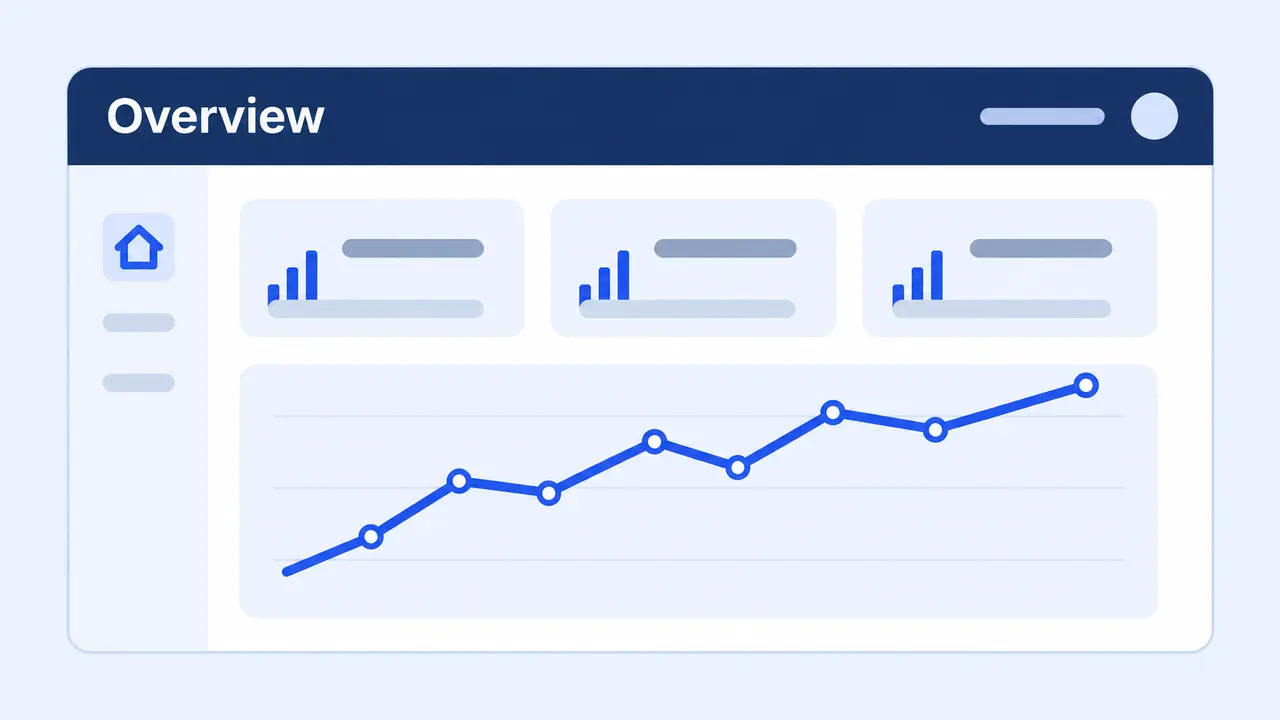
Start with the summary #
Overview brings together check totals, work in progress and activity. In a demo, all figures are illustrative. In a real workspace, a total is a summary of the displayed scope, not a list of tasks you personally need to complete.
Use Waiting on you, and the red note on the DBS checks ring, to find items requiring organisation input. A check being processed by ClearDBS or awaiting an applicant is different from a request waiting on your team. Open the underlying check before contacting an applicant.
Ask AI about this sectionRead the chart in context #
Check the selected period and the labels before comparing values. A change in date range or filter changes the population represented. Chart segments group workflow states; they are not official DBS results or guarantees of completion time.
Use Checks for record-level investigation. Searching for a reference is more reliable than estimating a count from a chart. If a filtered table does not match the overview total, clear the filter and compare the scope and period.
Ask AI about this sectionUse recent activity #
Recent activity explains what happened and when. Open an event where available to inspect its associated record. The latest event is not always the next action: an applicant may have completed one stage while another remains outstanding.
An invitation or notification event can mean the message was queued. It does not establish delivery or that the recipient read it. Look at the current invitation or check status before sending another reminder.
Ask AI about this sectionChoose the next step #
- Open Checks to investigate a specific applicant or status group.
- Open Members or Teams to review who is responsible.
- Open Billing for order and credit questions.
- Open Contracts for an agreement awaiting a named signer.
If the screen appears empty, confirm the selected organisation, filter and your access. Avoid creating a replacement check until you have searched for the existing reference.
Ask AI about this sectionDetailed walkthrough #
1. Decide what needs attention
Read Waiting on you first, then the red note on the DBS checks ring if there is one. A high total does not tell you which request is blocked. Open the item, or open Checks, to identify the specific person and the next action.
2. Read the stage distribution
Compare the four figures under Last 30 days to see where checks are accumulating. They count the checks started in the last 30 days, not every check you have ever run. Several checks at the same stage may need different actions; use the figures as a starting point and confirm the next step on each record.
3. Follow an activity reference
Read the applicant name, check reference and time together in Recent activity. Match the reference before acting on a similar name. For a longer history or to investigate who made a change, use the Audit section.
Ask AI about this sectionPractise this section #
Open Help & tutorials, select this guide and choose Start practice walkthrough. Read each highlighted component before continuing. Use Back to revisit an explanation and Retry if a sample has not loaded. The walkthrough uses fictional records; do not enter real applicant information.
Use Exit tutorial to leave and keep your place, then Resume walkthrough in this guide to continue. When returning from practice to a real workspace, review the actual record and your permissions before making a change. Tutorial completion does not perform the underlying task.
Ask AI about this sectionBefore using this guide #
Open Overview in the Organisation workspace. Use the totals as a starting point, then confirm any action on an individual check.
Ask AI about this sectionWorked example #
A DBS checks ring well short of full, with nothing waiting on you, can mean work is progressing elsewhere. Read the distribution and recent activity before deciding that the whole queue is blocked.
Ask AI about this sectionGuided component walkthrough #
Each component has one short guided step. Read the explanation, then choose Next; Back revisits the previous component. The cursor only demonstrates useful navigation or an explicit action. Replay action repeats that demonstration, and Skip animation keeps the explanation. Use this written guide for feature details.
Your checks at a glance
- Your checks at a glance: Three rings: screening checks done, who is ready to start, and your DBS checks at every level. Each ring opens its page.
- Waiting on you: The follow-ups and reviews that need an answer from your team, most urgent first. A red note on the DBS checks ring counts the DBS checks that need your action.
- DBS checks: The ring is a summary count. Open the individual record to read its actual outcome and reference before using it in a recruitment decision. Demo completions remain sample workflow data.
- Decide what needs attention: Read Waiting on you first, then the red note on the DBS checks ring if there is one. A high total does not tell you which request is blocked. Open the item, or open Checks, to identify the specific person and the next action.
Last 30 days
- Last 30 days: The checks started in the last 30 days, day by day, and where they stand now: complete, in progress, pending or flagged.
- Read the stage distribution: Compare the four figures to see where checks are accumulating. Each figure opens the Checks table filtered to that status. Several checks at the same stage may need different actions; confirm the next step on each record.
Recent activity
- Recent activity: The newest workspace events, each naming the applicant and the check reference. Audit holds the complete list.
- Read an activity entry: Each activity row combines an event, its subject and a time. Start with the event, confirm the named record, then use the time to establish the order of changes.
- Follow an activity reference: Read the applicant name, check reference and time together in Recent activity. Match the reference before acting on a similar name. For a longer history or to investigate who made a change, use the Audit section.